
We wanted to write an article and let people know how simple it is these days to run a LLM on your machine. You don’t need to spend money to run your own LLM and the open source models have become pretty good for normal day-to-day tasks.
This article is assuming 2 things:
- You are running a Linux machine (although the steps should work on Mac)
- You have a GPU in your machine
With that out of the way, let’s jump into the first section.
What is an LLM #
I know you want me to jump straight to “this is how you run it” but it would be beneficial for you to know at least a bit about what an LLM is and what all of the weird terminology means.
The most important things to know about running LLMs are:
Parameter Count and Model Sizes #
You might have heard of some open source models already, such as Ollama, GLM, or Qwen. The name is usually followed by a number: 5B, 10B, 20B.
What do those numbers mean? To put it as simply as possible, this is the size of the model. For instance, if we have a model named “gpt-oss-20b”, 20B means the model has 20 Billion parameters.
Parameters are the internal variables that the model uses to learn from data and make predictions. A higher number typically indicates a more complex and capable model.
The most important thing you need to know about this when running a model is that the size in GB of the model will reflect this. A 20B model like gpt-oss will be roughly ~20GB of RAM.
What this means is you need to have 20GB of unified memory (GPU and RAM). This will vary by the quantization of the model, more on that below.
Formats #
Now that we know how much RAM we need to have on the computer, let’s figure out the format we need to run a model.
In this article, we are using llama.cpp. This app uses a format of the LLMs called GGUF.
for efficiently storing and deploying large language models (LLMs).
When you want to run a model locally with llama.cpp, make sure you are downloading a model marked with GGUF.
Quantization #
This part of our article is very important. Quantization can be used to run larger LLMs on your hardware if you cannot run the full FP16 or FP32 models.
and activations, typically converting them from high-precision formats like 32-bit floating-point to lower-precision formats like 8-bit integers.
As a rule of thumb, you can get a 16B parameters model quantized to 8 bits and run it on a GPU with about 8GB of RAM.
Drivers #
Keep in mind this article will focus on AMD hardware using ROCM. But depending on your computer, you will need to check the llama.cpp docs.
Setup LLAMA.CPP #
We’ve come to the best part of this small tutorial: running the actual models.
To run a model we need to have the following:
- Download a model
- You can find any model you want on Hugging Face
- You need to do some driver setup for your machine
- For our setup, we needed to install the Radeon ROCM drivers
- This may vary on your system
ollama-rocm 0.14.1-1
rocm-core 7.1.1-1
rocm-device-libs 2:7.1.1-2
rocm-llvm 2:7.1.1-2
rocminfo 7.1.1-1
Once you have your drivers set up on your machine, you will need to set up the llama.cpp server. You can do so with this Docker file.
services:
  base:
    container_name: llama
    image: ghcr.io/ggml-org/llama.cpp:server-vulkan
    expose:
      - "8080"
    volumes:
      - ./models:/models
    devices:
      - /dev/dri:/dev/dri
    group_add:
      - video
    restart: always
    networks:
      - default
    healthcheck:
      test: ["CMD", "pgrep", "-f", "server-vulkan"]
      interval: 30s
      timeout: 10s
      retries: 3
    logging:
      driver: "json-file"
      options:
        max-size: "100m"
        max-file: "3"

  gpt20b:
    extends: base
    environment:
      - LLAMA_ARG_N_GPU_LAYERS=40
      - LLAMA_ARG_CTX_SIZE=120000
      - LLAMA_ARG_MODEL=/models/gpt-oss-20b-F16.gguf

networks:
  default:
driver: bridgeThe image version of the llama.cpp server is “server-vulkan”, which is important depending on your hardware type.
Once you have your compose setup ready, you can just run:
docker compose up -d gpt20bThis will start the server up.
You can now test the server with the following command:
# 172.21.0.2 is the llama container IP

curl -Ss http://172.21.0.2:8080/v1/chat/completions \
-H "Content-Type: application/json" \
-d '{"messages": [{"role": "user", "content": [{"type" : "text", "text" : "Hello"}]}]}' | jq
Once you get a response, the server is working.
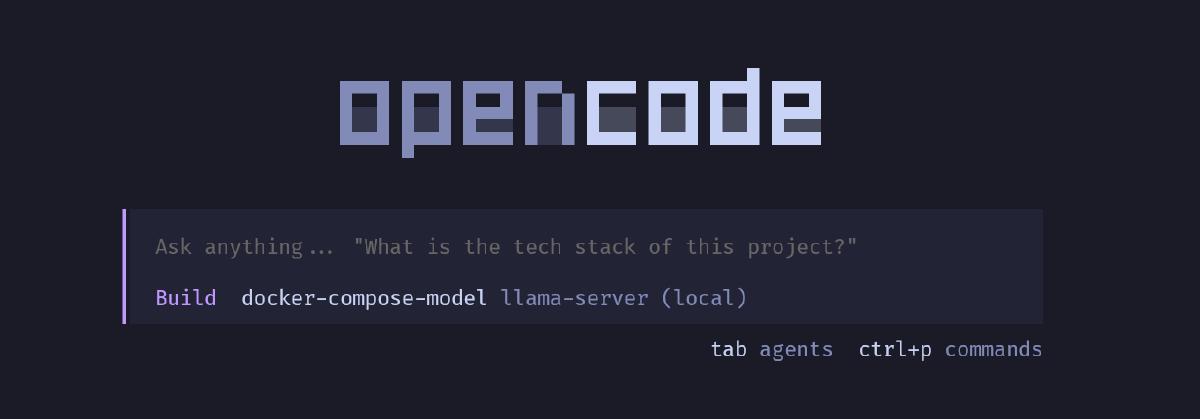
Now for the fun part: attaching it to opencode. Go to their website and download opencode once you have it installed.
vi ~/.config/opencode/opencode.jsonPaste the following code by CTRL + V (Some OSes you need Shift as well):
{
  "$schema": "https://opencode.ai/config.json",
  "model": "llama.cpp/local-model",
  "provider": {
    "llama.cpp": {
      "npm": "@ai-sdk/openai-compatible",
      "name": "llama-server (local)",
      "options": {
        "baseURL": "http://llama:8080/v1"
      },
      "models": {
        "local-model": {
          "name": "docker-compose-model",
          "limit": {
            "context": 128000,
            "output": 65536
          }
        }
      }
    }
  }
}
:wq! to write and quit from vim
The setup is now complete. If you log into your opencode, your local model will be auto-selected. Have fun playing with your local model!
Conclusion #
You can run a lot of models on your local machine and its pretty easy from here to extend your models and more.
If you need somewhere to run these models or you need more compute, checkout our pricing page.